
--CAUTION!-- Before you proceed. It is advised that you first do two things:
1. Back up Your Data: From within the program, click File > Maintenance > Back up Database.
- If the database is not on “this” computer, the backup will begin immediately.
- If the database is on “this” computer, the Select Directory window will open letting you set where you want the backup to go.
2. Turn Off Automatic Accruals: Click Settings > Global Settings > Attendance. Under: Set how Time-Off accruals should run select:
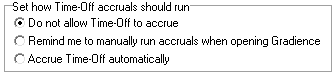
Click Save > OK > Close.
Once this is down, you may mow remove your transactions.
Remove Transactions:
1. Click on File > Maintenance > Remove Transactions. A popup window will open:
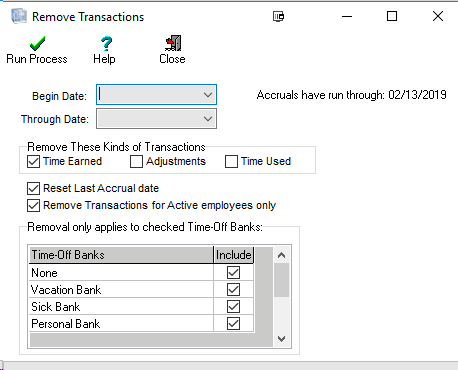
2. Begin Date: Enter the earliest date on which transactions will be removed.
3. Through Date: Enter the last date on which transactions will be removed.
4. Remove Transaction Records of Type: Designate transactions to remove.
- Time Earned – Removes time-earned.
- Adjustments – Removes manual adjustments for the selected date range.
- Used – Removes time used for the selected date range.
5. In the large field at the lower-left of the pop-up window, only check those categories/banks where time is to be deleted for the date range entered.
6. Click Run Process > Close.
7. You will get a popup window indicating the new last accrual date.
8. To verify results, click Transactions.
--IMPORTANT-- After you are finished removing transactions you will need to set your accruals to accrue manually or automatically once more. Failing to do this, Time-Offs will NOT be Accrued, since it was turned off.
Comments
Article is closed for comments.